![How to Create a Budget for BI & Analytics Services [With Template]](https://img.shgstatic.com/clutch-static-prod/image/resize/715x400/s3fs-public/article/f07e9d6bd89e7f70df9c94301acdd847.png)
How to Create a Budget for BI & Analytics Services [With Template]
Use our custom template for your business intelligence and analytics needs.
Updated June 10, 2026

If it feels like your phone is spying on you, it’s likely due to data collected through app permissions. But that can still be concerning. Learn how to understand what data your phone is collecting and how to limit it.
This scenario may sound familiar: You’re chatting with someone and casually mention a product. Within hours, you see an ad or a recommendation for that very product while scrolling social media or browsing online.
Coincidence? Or is your phone listening to every word you say?
Looking for a IT Services agency?
Compare our list of top IT Services companies near you
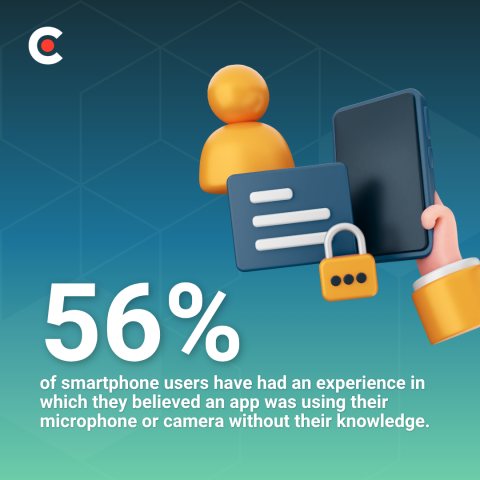
You’re far from the only one experiencing the same unease. New Clutch data reveals that 56% of smartphone users have had an experience in which they believed an app was using their microphone or camera without their knowledge, and another 28% have heard others say it has happened to them.
That can be concerning for users who are worried about privacy and data collection. Since apps like Instagram and TikTok often require access to a device's microphone and camera for content creation, it's easy to see why users make that connection. However, ad targeting is typically driven by a wide range of data sources and user behaviors.
We're here to unpack what’s really happening behind the scenes on your phone, examine what apps can do, and provide concrete steps you can take to limit app permissions and stop your phone from spying on you.
Many people assume that their phones are always watching and listening to them. You might remember the scene from The Dark Knight (2008) in which Batman uses an illegal mass-surveillance system to spy on 30 million Gotham City residents through their mobile phones.
Although such a dystopian scenario might be how many people think their phones are spying on them, fortunately, that’s not usually the case. People often conflate their phones spying on them via microphone and camera access with broader behavioral tracking, which can make users feel like their phones are listening to them.
If you've granted an app permission, it can technically access your phone's microphone or camera — sometimes in ways you may not realize, such as background recording or ambient audio sampling.
However, what feels like spying is actually cross-app tracking, which occurs when tech companies and advertisers monitor your digital activity across unrelated mobile apps and websites. By stitching this data together, these companies create a remarkably accurate, invisible profile of your habits, interests, and routines, which they can use to predict what you’re likely to do next.
This data includes your:
Both spying and cross-app tracking are legitimate privacy issues. Fortunately, you can address both through the same set of permission controls.
If you’re concerned about how app companies collect and share your information, read more about how to protect your data.
Apps can’t access your phone’s settings and functions without your permission. After you first install an app, the app “calls” your phone’s application programming interface (API). Your operating system intercepts the call and prompts you to approve or deny the requested access.
Conditioned by notification fatigue, many users reflexively tap “Allow,” dismissing prompts to get past setup and into the app as quickly as possible. When that occurs, the user grants the app explicit permission to access the requested functions, likely without even reading the context of the specific prompt or understanding why the app needs these permissions.
The problem is that many apps request microphone or camera access beyond what they strictly need. Common categories of apps that do this include:
There’s a difference between active microphone or camera use and background use. Active use occurs only when you’ve opened the app and are using it. Background use allows an app to run the permitted function even when you’ve closed or minimized the app, or even when the phone’s screen is locked.
For example:
Granting an app background access means it can watch or listen to you even when you’re not actively using it.
How would you know if this is the case? If you’ve inadvertently allowed background mic or camera access, your phone will display a system-level indicator when an app uses either.
Apple’s iOS operating system displays color-coded dots in the “dynamic island” (the black, oblong display area at the top of the iPhone screen that includes the front camera and Face ID hardware). These dots indicate:
Google’s Android operating system displays indicators in the status bar in the upper-right corner of the phone’s screen, such as a green camera or microphone icon.
Paying attention to these areas helps you protect your privacy, identify hidden malware or spyware, detect unauthorized snooping, and remove or block the offending software.
On a mobile device running iOS, follow these steps to turn off permissions in your Apple Support settings to prevent apps from accessing your microphone and camera:
For additional privacy, we also recommend:
Taking these steps helps to protect your private conversations and biometric data.
To stop Android mobile apps from using the microphone or camera without your knowledge, follow these steps:
Beyond revoking unnecessary permissions, you can also consider:
By removing permissions from apps that don’t need them, you can prevent secret surveillance and data monetization.
Several other phone permissions function essentially as built-in tracking devices, quietly monitoring your habits, movements, and more:
For all of these permissions, apply the same “revoke-by-default” mindset we recommend for microphone and camera access permissions.
Reviewing your app permissions once is smart, but doing it regularly is key to protecting yourself from unauthorized data collection. For optimal app security, we recommend auditing your permission settings every 60–90 days by opening your permissions settings and revoking anything that doesn’t pass the “Why does this app need this access?” test.
Both iOS and Android devices offer built-in tools that show you which apps accessed your microphone, camera, and location sensors and when:
It’s also good practice to delete apps you haven’t used in the past three months. Dormant apps still collect data, posing a security risk. For apps you decide to keep, check for permission changes after operating system updates. Occasionally, apps request new permissions after updates without making it obvious.
The reality is that no amount of permission-tweaking will fully prevent companies from tracking your behavior. Some data collection is baked into how operating systems and connected services work.
Still, minimizing the data you share significantly reduces your security exposure and the amount of raw data apps use to track you. The less information companies collect about you, the less sensitive data is available if that information is exposed in a breach, sold to third parties, or misused. That's why more than half (51%) of users are trying to limit the data they share, according to new Clutch data.
While you can’t likely achieve perfect privacy, what’s most important is working toward intentional privacy.
Feeling like your phone is spying on you isn’t paranoia. It actually reflects a permissions ecosystem that defaults to access rather than restraint.
When you know how to stop your phone from listening to you, you have more control than you may have realized. Taking just 15 minutes quarterly to audit your app permissions can dramatically reduce both literal sensor access and the broader tracking that enables that eerie “Is my phone listening to me?” experience.