Lead Quality vs. Lead Quantity: Why B2B Teams Are Rethinking Their Funnel in 2026
Bigger buying committees and tighter budgets are forcing B2B teams to rethink lead quality vs. quantity. Here's how top teams rebalance the tradeoff in 2026.
Updated June 27, 2025

Use this article to learn about how chatbots can create a lead generation campaign as well as the differences between a chatbot and email marketing.
While email marketing still remains an efficient channel, its effectiveness is starting to decrease.
Marketing emails are responsible for 70% of ‘this is spam’ complaints. I personally have over 25k messages in my inbox and most of it is spam.
Looking for a Digital Marketing agency?
Compare our list of top Digital Marketing companies near you
According to MailChimp, emails only have a 20.81% open rate and a 2.81% click-through rate (CTR) on average.
But what if I told you that there is a channel that can have an 88% open rate and around 56% CTR? Would you be interested?
Chatbots are an effective method of increasing open rates and CTRs. Businesses should invest in messenger marketing to boost engagement with their marketing messages.
Let’s briefly take a look at how web developers can integrate chatbot marketing can increase your chance of marketing success.
Chatbots have:
Using a chatbot can make your company appear relatable and personable. Chatbots are useful when marketing your company as they can streamline customer service and encourage people to engage with your messaging.
While chatbots offer an immediate connection between business and customer, you can also use bots to integrate into your social media.
ManyChat is an app that lets you create a Facebook Messenger bot for marketing, lead generation, sales, and support.
ManyChat offers a number of features including:
Let’s take a look at Flow from one of my marketing campaigns, which was designed to generate leads in exchange for an e-book.
Below, there are 3 building blocks to Flows:
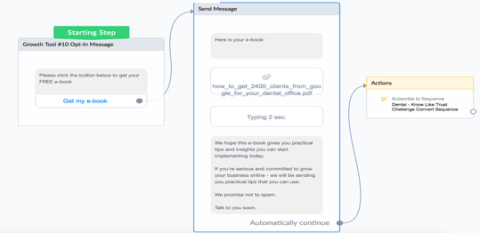
3. Sequences. A sequence is essentially a series of messages that are automatically sent at specific times on specific days. If you’re familiar with email marketing, think of a sequence as an autoresponder or a drip campaign.
ManyChat can be an extremely useful tool for businesses who want to automate their messaging processes and schedule out content to be sent at certain times.
Before we start, it’s important to mention that there a few different ways to do lead generation with ManyChat. For example, you can use their landing pages or add a popup to your own website.
Here is an example of a landing page that you can create using ManyChat:
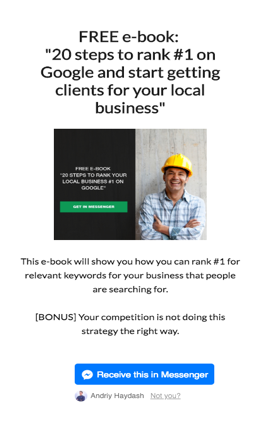
Whether you’re using landing pages, popups or any other of the Growth Tools that Manychat gives you, it will redirect all users to Facebook Messenger after they opt-in.
Now that we have a basic understanding of how ManyChat works, let’s build a lead generation campaign and integrate it with Facebook ads.
The campaign we will build is going to be a lead generation campaign. We’ll have people opt-in for a simple e-book that we’ll use as a lead magnet.
To start building this lead generation campaign, we need to define the following:
After you have decided on the audience, objective, and structure of your campaign, you must develop the more specific parts of the process.
The first step is to build a flow inside ManyChat.
To build a flow, log in to your dashboard and click on “Flows” --> “New Flow.” You’ll be prompted to give this flow a name.
We are going to call this flow, “Life Coaches E-Book.”
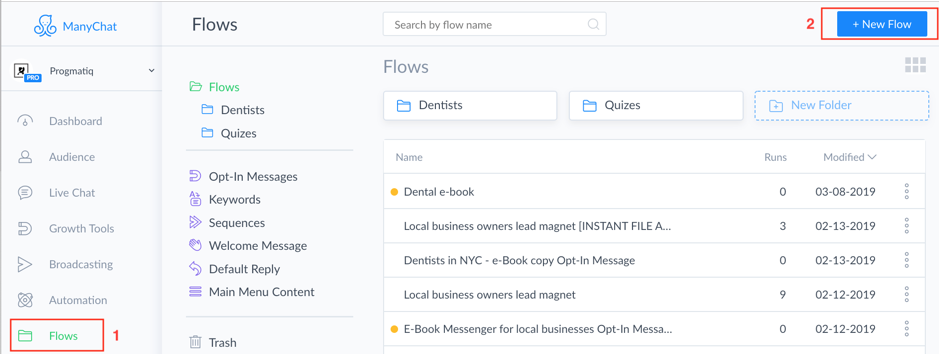
Now you’ll be redirected to a flow builder. It’s a visual board where you can program your bot.
Let’s take a look at how we can build our own simple bot step by step:
1. Click on the grey box and add your text message.
2. Write your message, for example, “Please click on the button below to get your free e-book.”
3. Click on the text below the message that says “+ Add Button.”
4. Give your button a title (e.g. “Get My E-Book.”)
5. Test that the button can send another message to your users.
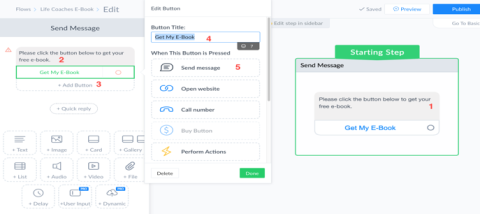
6. Now you’ll see that you have another block added to your visual builder. Click on the grey box again and add your new message.
7. Add text to your message that says “Here is your e-book.”
8. Click on the “File” tile below. This tile will add another piece to the message block that will allow you to add the e-book pdf.
9. Click on the newly added box and pick your file or simply drag and drop a pdf onto that box and it will be uploaded.
10. Click on “Preview” button in the right top corner to take a look at how your chatbot works inside Facebook’s messenger. After you’re sure that everything works fine, click on “Publish”
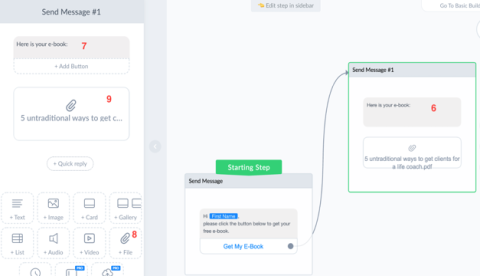
Important Notice: The reason we are sending our user the pdf in a second message instead of the first one is that due to Facebook limitations, it doesn’t allow us to send any kind of file until user opts-in (in this case - responds to our first message).
Now that we’ve created and published our bot, we should also invest in Facebook ads to promote your services and channels.
Use Facebook Business Manager to create the ad.
First, open the Ads Manager.
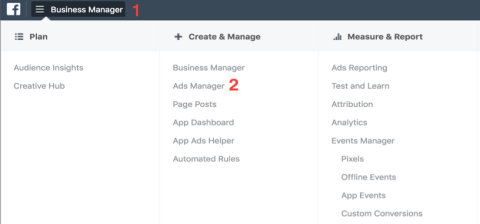
Now let’s go and create our campaign with the name, “Life Coaches Facebook Messenger.”
For the objective, choose “Messages.”
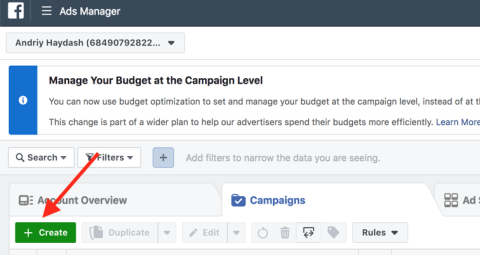
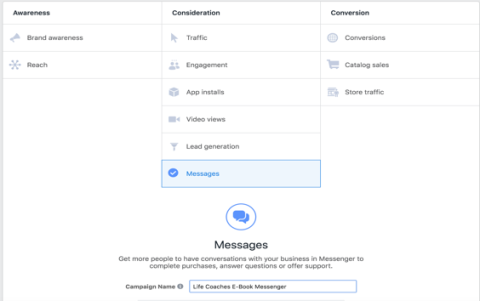
Now we can configure our ad set and our ad:
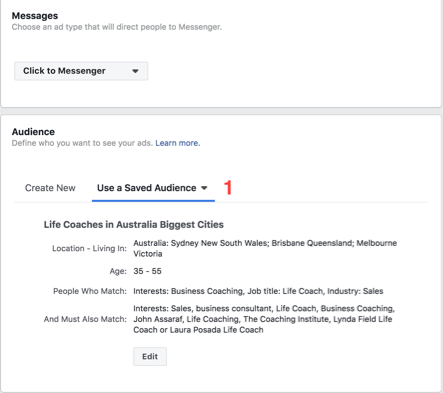
1. You have to pick a target audience you are trying to reach. In the example, I have used one that I’ve already created previously.
If you want, you can also create a custom one on your own.
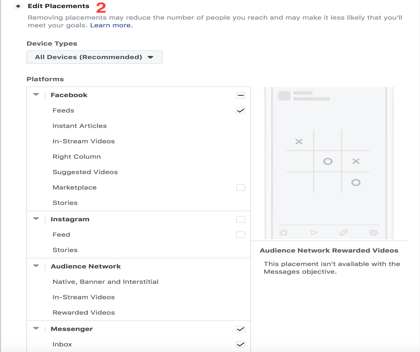
2. I usually like to manually pick ad placements. We are going to use the Facebook newsfeed and Messenger inbox.
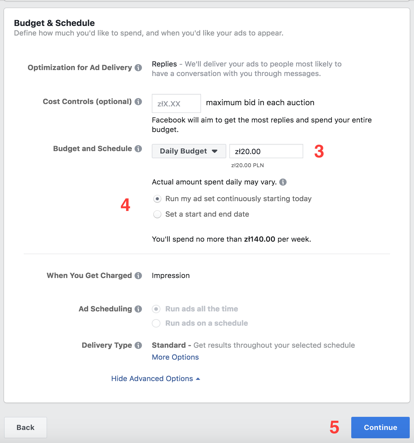
3. Set the daily budget. I like to set mine for zł20/day which is around $5.
4. Schedule your ads. You can set up a start and end date for your ad or make it run automatically until you disable it. We are going to use the second option.
5. Click “Continue” to proceed to the ad.
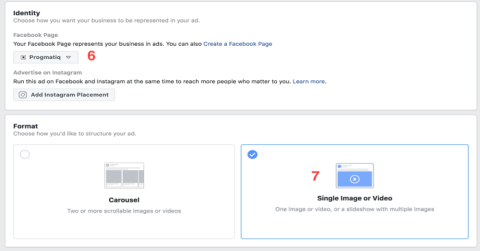
6. If you have multiple business pages, make sure you pick the right one.
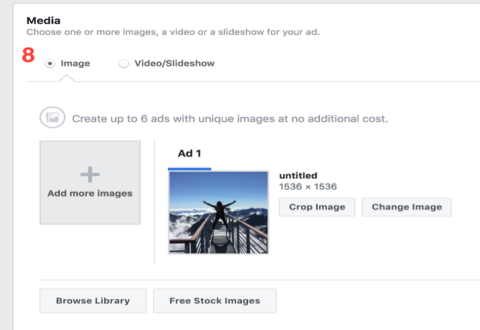
7. We are going to use a single image/video format.
8. Let’s pick our image for the ad. I have chosen this one and cropped it by clicking on “Crop Image” to make it square.
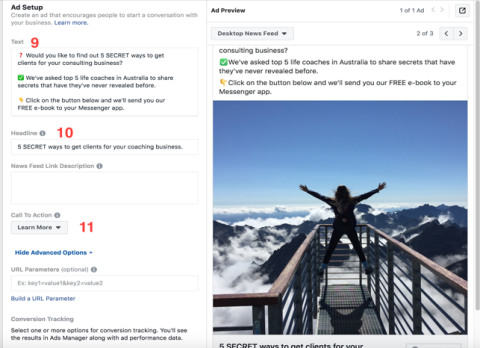
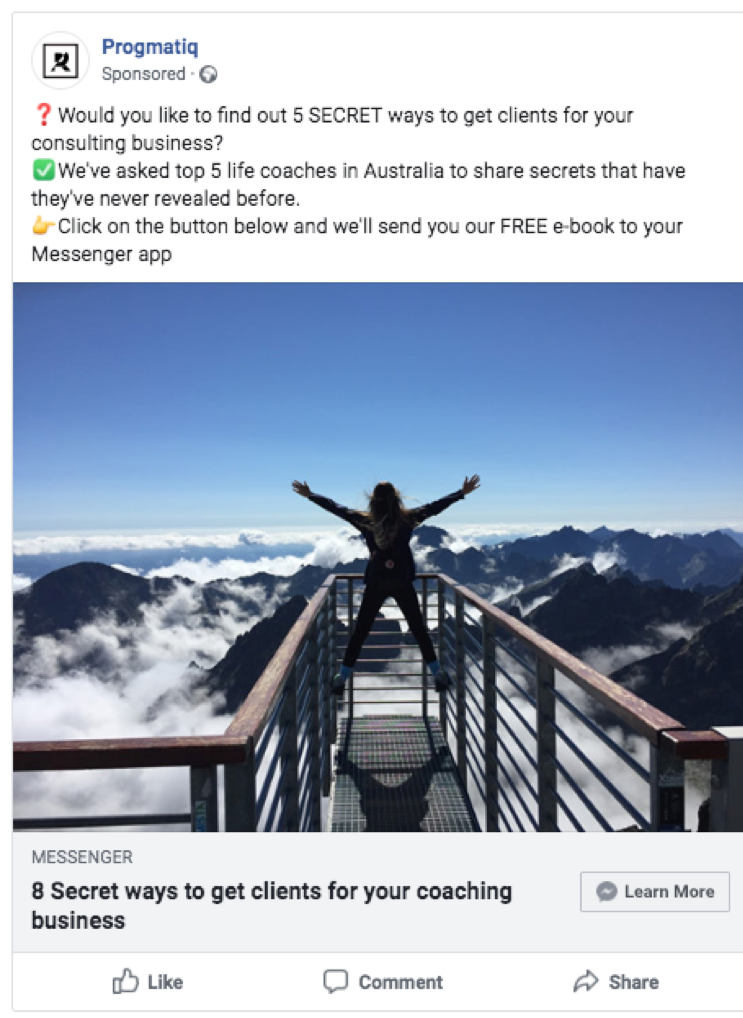
9. Now we need to set up our ad copy. For example: “Would you like to find out 5 SECRET ways to get clients for your consulting business? We've asked top 5 life coaches in Australia to share secrets that have they've never revealed before. Click on the button below and we'll send you our FREE e-book to your Messenger app."
10. Set up the headline for your ad. We will use, “5 SECRET Ways to Get Clients for Your Coaching Business.”
11. Create button text. By default, it says “Send Message,” but we are going to use “Learn More” in this example as I think it fits our ad better.
Most Facebook ads follow the general steps above. We will now explore the steps specific to our kind of ad which is going to drive people to our messenger bot. We’re going to create one using ManyChat.
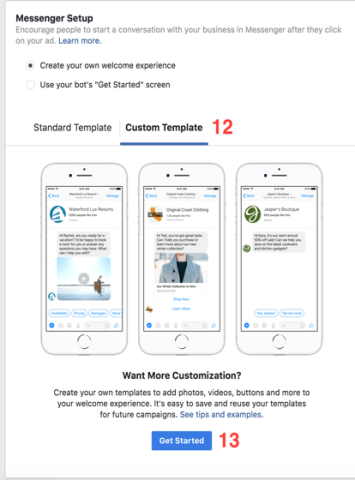
12. Click on a “Custom Template” tab in the “Messenger Setup” section.
13. Click “Get Started.”
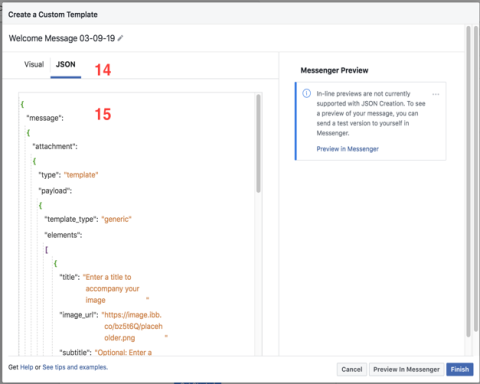
14. Now select a “JSON” tab.
15. This is their area that where we are going to paste in our code from ManyChat.
16. Go back to your ManyChat dashboard and click on “Growth Tools.”
17. Now create a new growth tool.
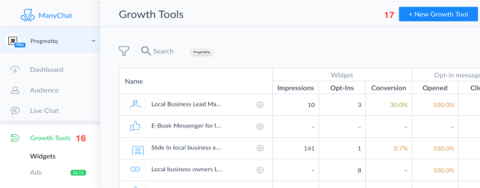
18. Give it a name: “Life Coaches E-Book”.
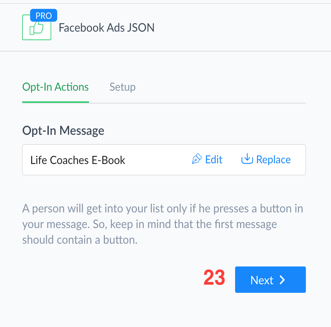
19. Select the “Facebook Ads JSON” growth tool. Please note that this tool is only available in the pro version.
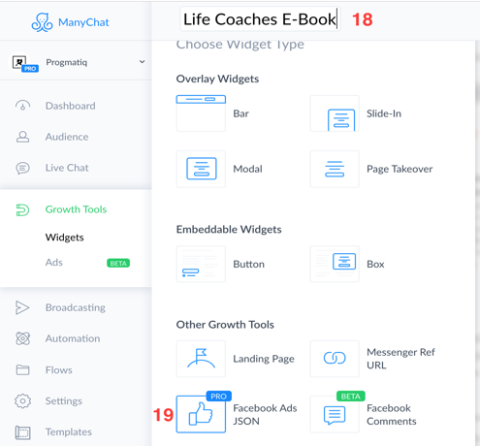
20. Click on “Replace.” We are going to replace the default flow with the one that we’ve created before.
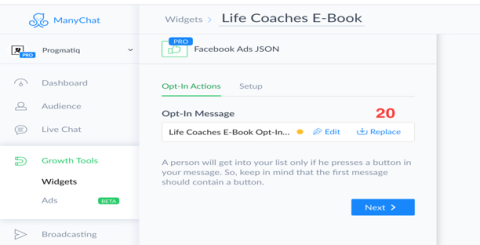
21. Pick the flow named “Life Coaches E-Book.”
22. Click on “Select this flow.”
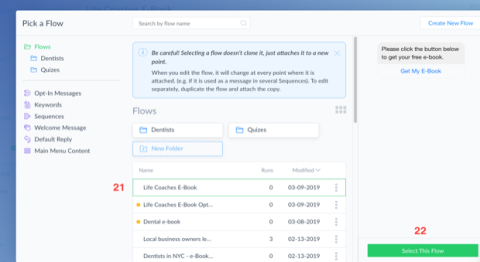
23. Click “Next” to proceed.
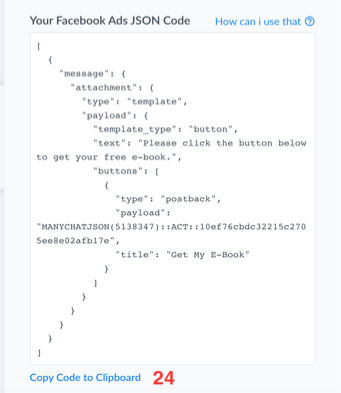
24. Now you can see the JSON code that ManyChat generated for us. Copy this code to your clipboard and replace it with the code from step 15. Click on “Finish” to close the “Messenger
Setup” section and click “Confirm.”
Now your ad will be reviewed by Facebook’s team and in an hour or so you can expect your ad to start running.
Below is how the ad looks in the news feed after it’s finished:
You can now evaluate the effectiveness of your ad as it goes live to an audience.
In this article, we’ve talked about the value of including a chatbot in your marketing efforts and then creating a Facebook ad using ManyChat.
As you’ve seen, messenger marketing is extremely powerful and businesses should recognize its potential to engage more people.
Obviously, Facebook Messenger is not the only messenger platform that you can use for your marketing. But since it’s one of the most frequently used ones, I’d highly recommend you try it out.
Facebook Messenger can bring you closer to your audience and provide immediate access to your customer through their phone. Consult with a digital marketing company to learn about how you can implement a chatbot into your campaigns.