Evaluating an Marketing Agency in the AI Search Era
AI search has completely changed how people interact with online content. When an AI summary appears at the top of search results, Google users only click a...
Updated October 20, 2026

Learn interactive email examples that can help you engage your leads and convert them into customers.
Interactive email examples include polls, quizzes, product carousels, and expandable sections that let recipients respond or explore content inside a supported inbox. Other formats, such as linked video previews and maps, use email to start an interaction that continues on a website. Choose the format around the action you want readers to complete, then provide a usable fallback.
An interactive email lets a recipient act on content inside the message, such as submitting a poll or expanding a section. Google’s AMP for Gmail guide describes dynamic interactions directly within email. Support depends on the format, inbox, and implementation. Animation and personalization can complement interactivity, but neither automatically creates a recipient-controlled experience.
| Format | Where the action happens | Practical feedback |
| In-message interaction | A supported form, carousel, or accordion inside the inbox | HTML content and a link to complete the same task on the web |
| Linked experience | A web quiz, demo, map, or video opened from the email | A descriptive text link alongside the preview image |
| Dynamic or tailored content | A changing timer image or a personalized content block | A written deadline or a useful general recommendation |
In this post, we'll explore a few interactive email examples that are proven to convert leads effectively. So if you’re ready to check them out, let’s get started:
Use a survey or poll to ask a focused question, such as which topic a subscriber wants you to cover next. Dyspatch’s poll examples demonstrate AMP-based questionnaires that can be completed in the message when supported. Include a link to the same question on a web page for other recipients.
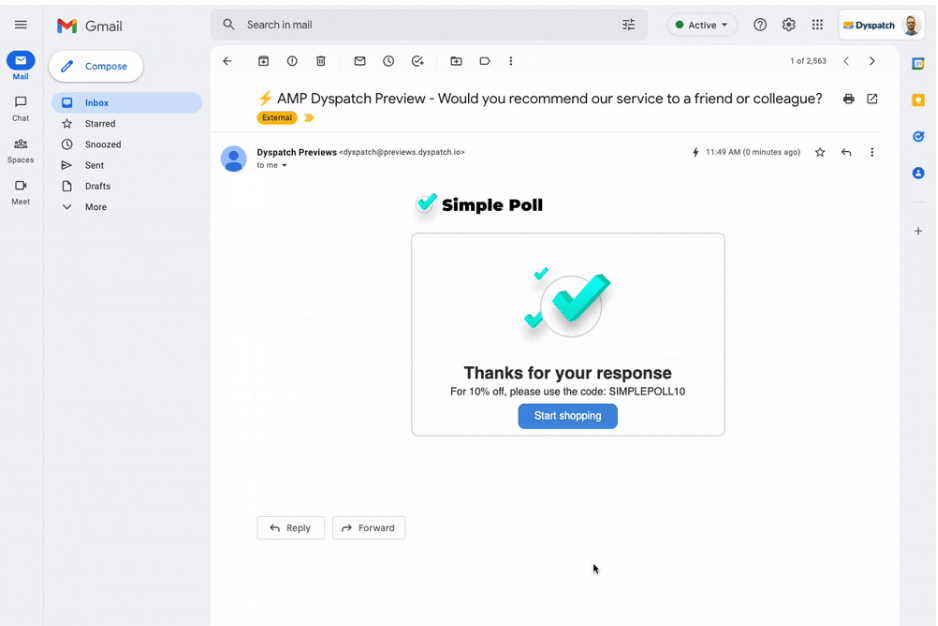
This interactive element encourages participation and provides valuable insights that inform your marketing strategies and product offerings.
A simple example is “Which topic should our next guide cover?” with three relevant options and a visible submit control. Count confirmed responses, not just clicks on an option. Keep a web version of the question accessible from the email.
Sending out quizzes can help readers explore products or preferences. Keep the questions relevant to your business and make the result useful. Decide whether the quiz runs in a tested email implementation or on a linked page, and make that next step clear to the reader.
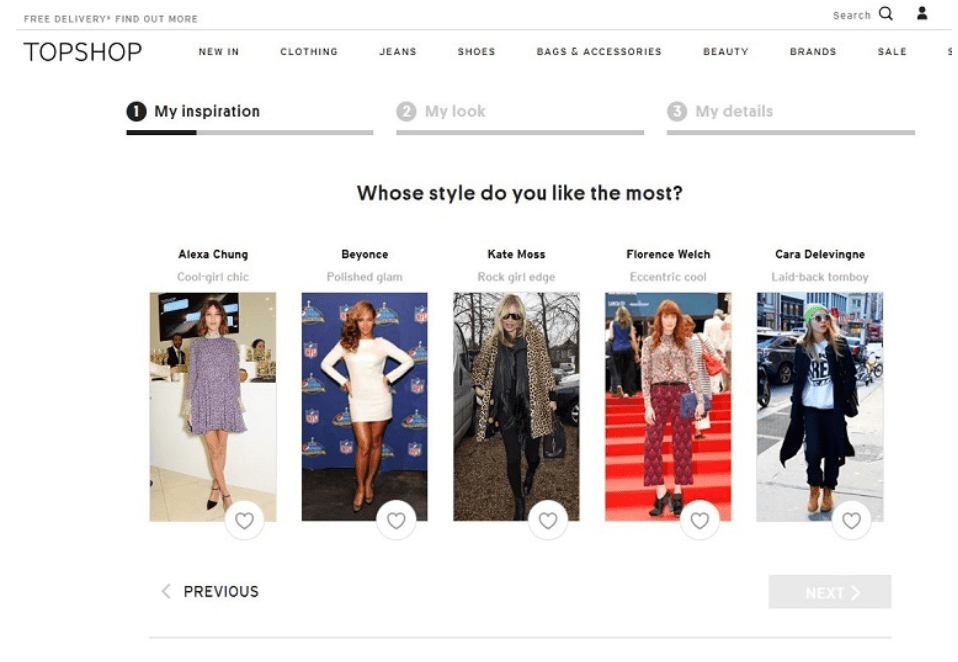
For example, you can create some fun questions for your quiz related to your products or services. This will not only help you engage your leads, but also educate them about your products and services.
You can also offer personalized results or recommendations based on their quiz responses to further nurture them through the sales funnel.
For example, a home-office retailer could ask about workspace size and intended use, then suggest a product category. This is an illustrative scenario. Keep the result page available through a “Take the quiz” link and measure completed quizzes and subsequent product visits separately.
Use images when they help readers compare products or understand an offer. A carousel adds recipient-controlled browsing; a GIF that cycles through pictures is animation, not the same interaction.

Use your product images to capture the attention of your leads. You can display multiple products, features, or offers within a single email using interactive image carousels or sliders.
In a supported implementation, readers can browse the images without leaving the message. Dyspatch’s carousel guide describes both carousel support limitations and an HTML fallback for its AMP version. For your fallback, display a useful static product image or grid with working product links.
For example, show different views of one product or a small selection from a collection, with each image linked to its relevant page. Let readers reach the same products from the fallback and measure product-page visits or purchases rather than assuming each slide view is a conversion.
When it comes to converting your users, presenting complex information in a structured and easily digestible format is essential. Email marketing is a great way to do that. You can use accordion menus in your emails to do that.
In supported inboxes, accordion menus let readers expand or collapse sections. The AMP for Email component list includes an accordion component. Keep the primary offer and CTA visible, and show essential details in the fallback rather than hiding them behind a control that may not work.
For example, a conference email could offer expandable sections for its agenda and venue details. Put the date, booking link, and essential terms outside the accordion. Use expanded text or a linked event page as the fallback.
Use a countdown to communicate a real deadline for registration or an offer. Litmus’s timer documentation describes an image-based animated timer, so it is dynamic visual content rather than a recipient-operated control. Include the actual end date and time zone in ordinary text and plan what readers see after the offer expires.
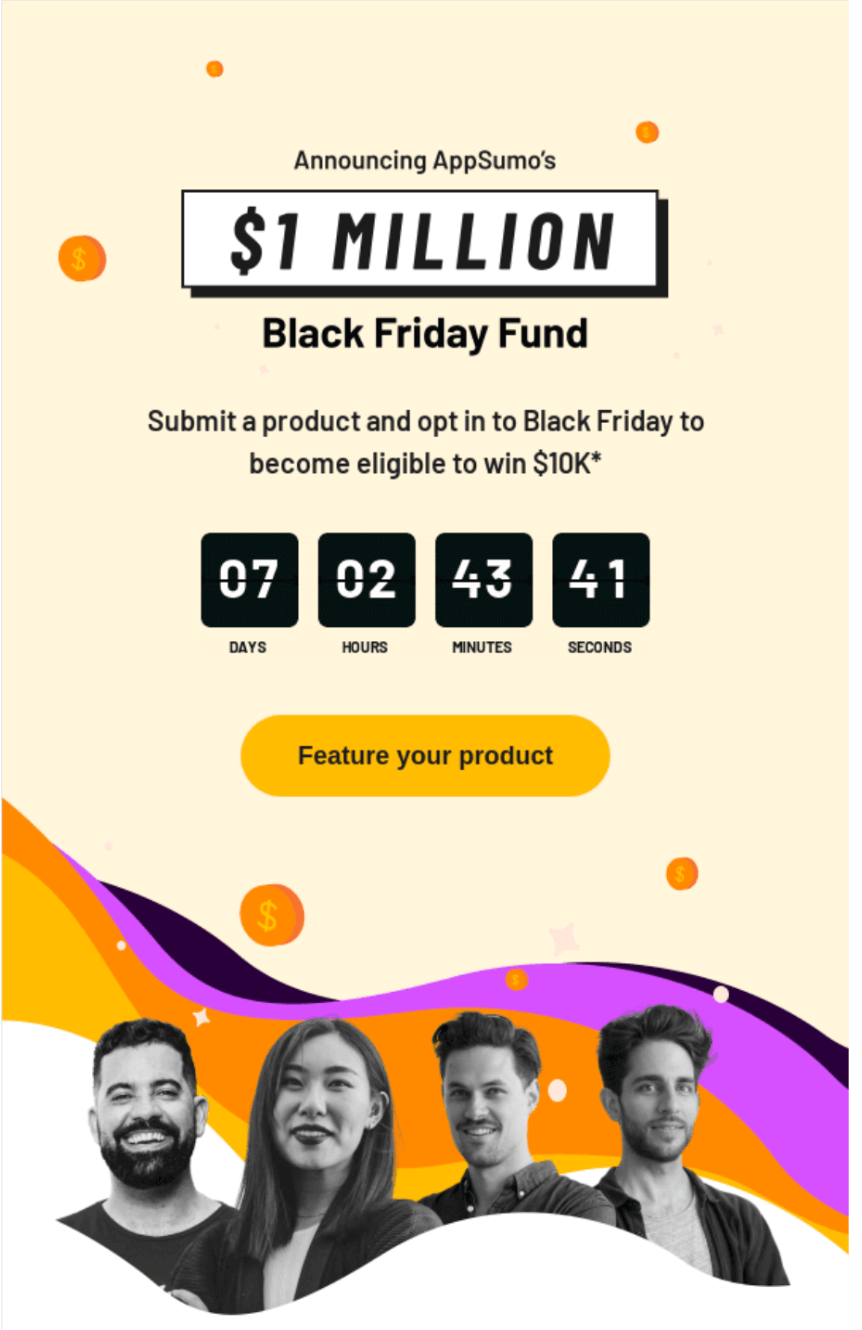
For example, pair a webinar registration deadline with a “Register” link. Check the image with caching, blocked images, and after-expiry behavior in mind; the written deadline should remain the source of truth. Measure completed registrations during the offer period.
Use email to introduce a specific product task, then let readers try it in a web demo. A short preview and a “Try the demo” link are a practical starting point. Vidyard’s video-email guide covers using video in outreach. Link the preview to a page where readers can complete the demonstration. If you build a limited in-message interaction, test that exact implementation separately.
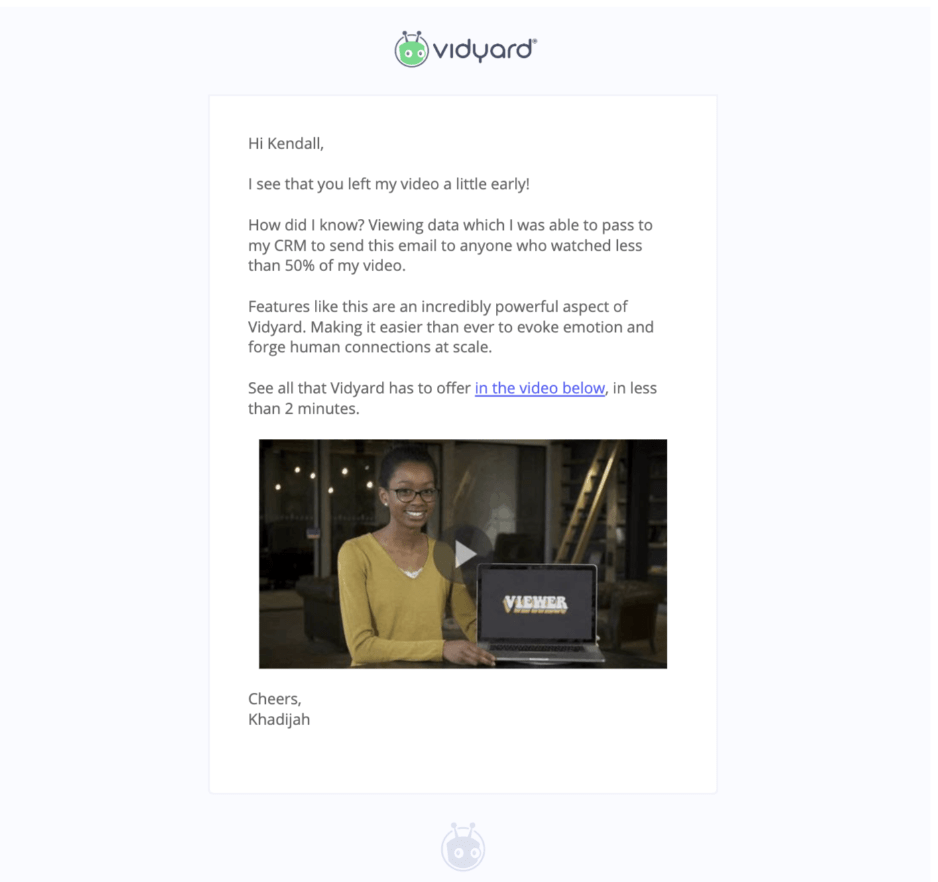
For example, preview how a software feature completes one task, then link directly to a web sandbox or guided demo. State whether the demo needs an account. Track demo starts and completions separately from email clicks.
For a store visit or event, include the venue name, address, and a static map image linked to a web map or directions page. The recipient can then use the map’s controls outside the email. Keep a text directions link available so the location remains useful when images do not load.
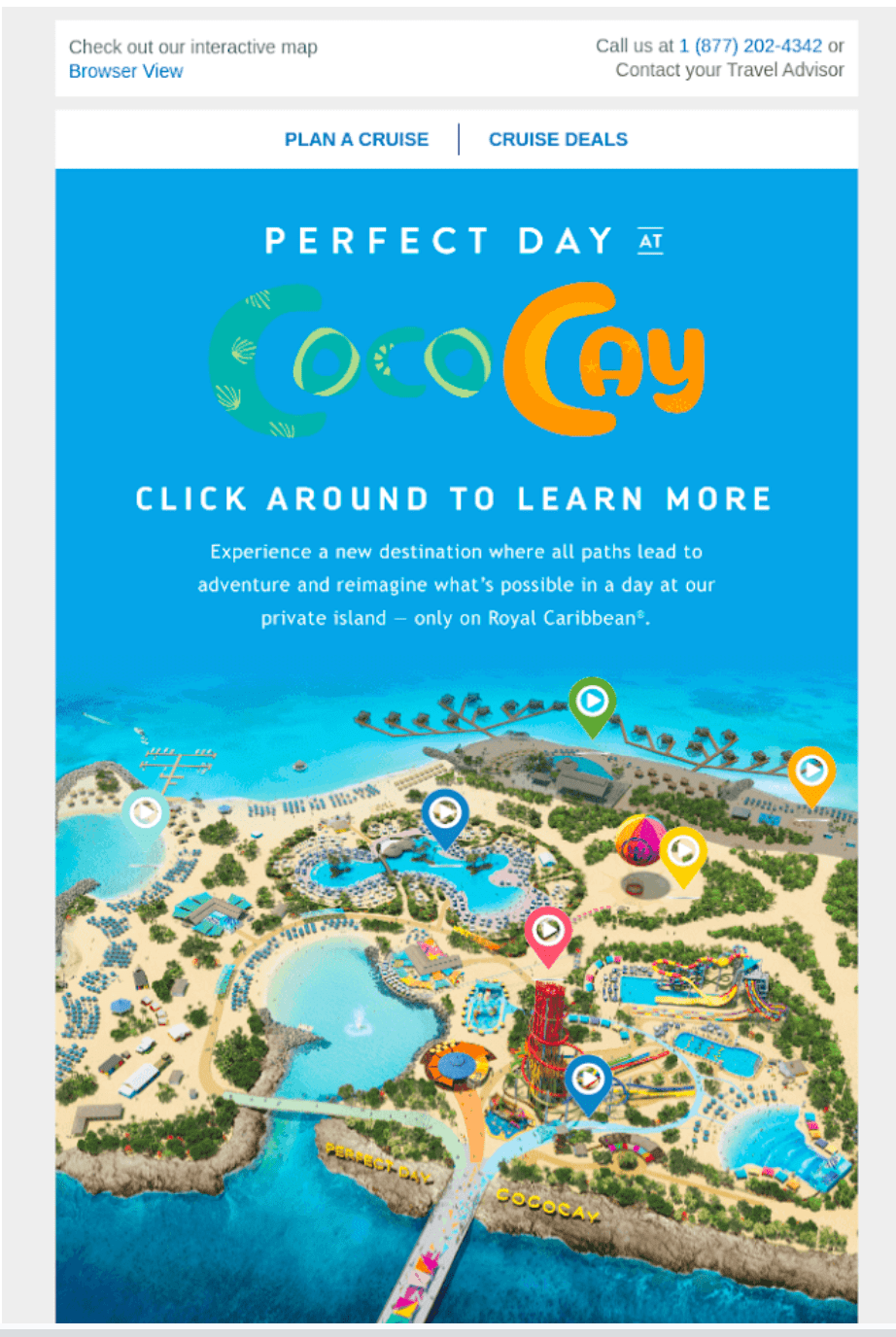
For example, an event invitation can pair the address with “Get directions” and a link to the venue map. This remains a linked map experience even if the email’s image looks like a map. Track directions clicks as interest, not proof that a recipient attended.
Use a thumbnail with a play symbol or a short GIF to preview a video, then link to the full video. Constant Contact’s video-email guide explains that its email editor uses a linked thumbnail rather than embedding playback. A GIF preview does not let the reader pause, seek, or interact with the full video.
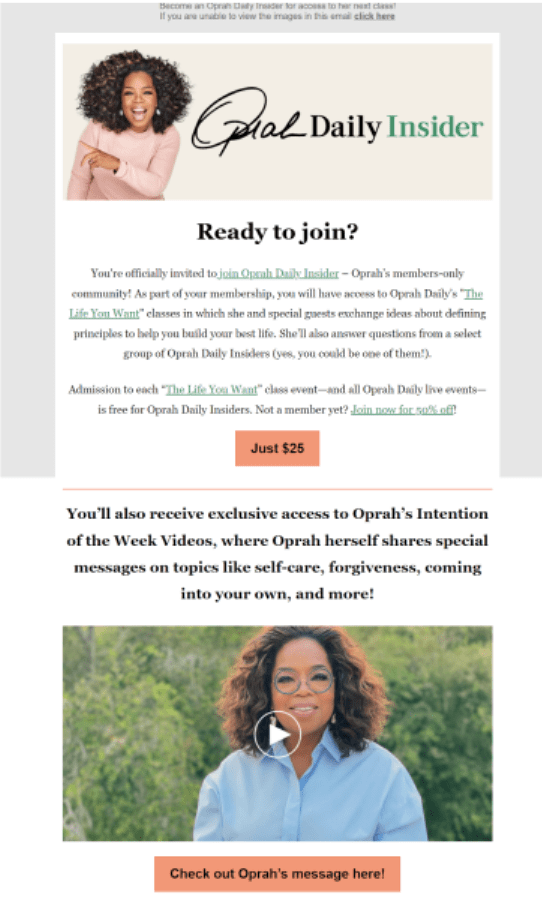
For example, use a short product walkthrough preview with “Watch the walkthrough.” Give readers a clear title and a destination with captions or a transcript. Keep a static thumbnail and text link available, and measure actual video viewing at the destination.
Tailor content to preferences or information that readers have shared with you. Mailchimp’s dynamic-content documentation describes showing or hiding content for different contacts. This is personalization; it becomes interactive when the reader can make a choice or submit a response, rather than simply seeing a tailored message.
For example, use a reader’s chosen topic to select a relevant guide, then invite them to update their preferences. Use a general recommendation when preference data is missing. Track confirmed preference updates or completed resource requests rather than treating a personalized greeting as an interaction.
Confirm that your email platform can send the format you choose and that the recipient experience has been tested in the inboxes you need to support. Google’s Gmail guidance calls for building, testing, and registering before sending AMP email to recipients. This Gmail workflow does not establish support across other providers.
Include a complete alternative. The AMP email structure specification requires an HTML or plain-text fallback alongside the AMP part. For the campaign, provide working web links and enough text for readers to understand the offer even when the interactive component is unavailable.
Before sending, check the actual message received through your platform, not only the editor preview. Test relevant desktop and mobile inboxes, blocked images, fallback rendering, form success and error states, keyboard use, clear control labels, and working destination links. Keep the primary action available if a carousel or accordion fails. Ask readers only for information needed for the task and explain how you will use it.
Choose one primary outcome before the send: confirmed poll responses, completed quiz results, registrations, or purchases. Record unique recipients who complete it during a defined period, divided by delivered recipients. Keep in-message completions separate from web completions, then deduplicate them before reporting a combined campaign total.
Track the preceding step too, such as a demo-link click, but do not treat every click as a completed action. Mailchimp’s bot-activity guidance explains how automated security scans and privacy tools can inflate open or click reporting. Apply your platform’s available filtering and compare confirmed outcomes, unsubscribes, and delivery issues alongside engagement.
For a test, randomly split an eligible audience between the interactive version and a simpler version with the same offer. Keep other campaign conditions comparable, plan the sample and decision criteria in advance, and check which recipients received the fallback. A whole-campaign result and a result limited to supported inboxes answer different questions. Report an uncertain result as inconclusive rather than claiming that interactivity caused a lift.
Start with one useful action, such as answering a question, comparing products, or viewing a demo. Use an advanced inbox feature when it fits your audience and sending workflow; otherwise, use a clear link to the same experience on the web.
Keep the fallback, destination, and measurement plan part of the campaign from the start. Review completed responses and business outcomes before deciding whether the interactive version earns its added production effort.